Import ComfyUI outputs and the AI library you already built
You already have the work. It is sitting in ComfyUI output folders, Downloads, AI Exports, client folders, external drives, local tools, and old projects. GenCatalog turns those files into a searchable local library, preserving embedded prompts, workflow settings, and LoRAs when the metadata is present.
The files survived. The creative context did not.
Months or years of AI work can end up as loose files: ComfyUI output PNGs in one folder, downloaded AI videos in another, final client selects somewhere else, and old AI projects you only half remember.
That is the painful part of an AI media library. The result is still on disk, but the prompt, project, source, checkpoint, LoRAs, notes, and reason you kept it can become hard to inspect outside the original tool.
You probably already own the work. You just do not own an organized library. GenCatalog helps you recover that library by turning scattered ComfyUI outputs and AI download folders into one searchable local archive.
Filenames do not remember what you were making
Random download names rarely tell you the prompt, source, checkpoint, LoRAs, project, client, or decision that made the result worth saving.
Duplicate folders hide the real archive
The same image or video can exist in Downloads, Downloads 2, a client folder, and an external drive. GenCatalog checks exact file hashes and skips duplicates by default.
Old work gets stranded outside your current workflow
A platform save button helps with what you create tomorrow. Local Import closes the gap for everything you already made yesterday.
From scattered folders to one AI media library.
The goal is not just moving files. It is reconnecting old AI images and videos with the creative memory that makes them findable, usable, and worth keeping.
Before
- Downloads
- Downloads 2
- AI Exports
- Client Final
- Desktop
- External Drive
- Archive
After: GenCatalog
- Search
- Prompt archive
- Tags
- Collections
- Ratings
- Notes
- Everything together
Not just for the work you create tomorrow.
Recover yesterday's generations
Local Import is for the library you already built: folders, exports, and old project media created before GenCatalog was part of the workflow.
Bring local tools and platform exports back together
Use it for AI download folders, API output folders, exported ZIPs you unpacked, and media from local tools or unsupported generators.
Rebuild the missing memory
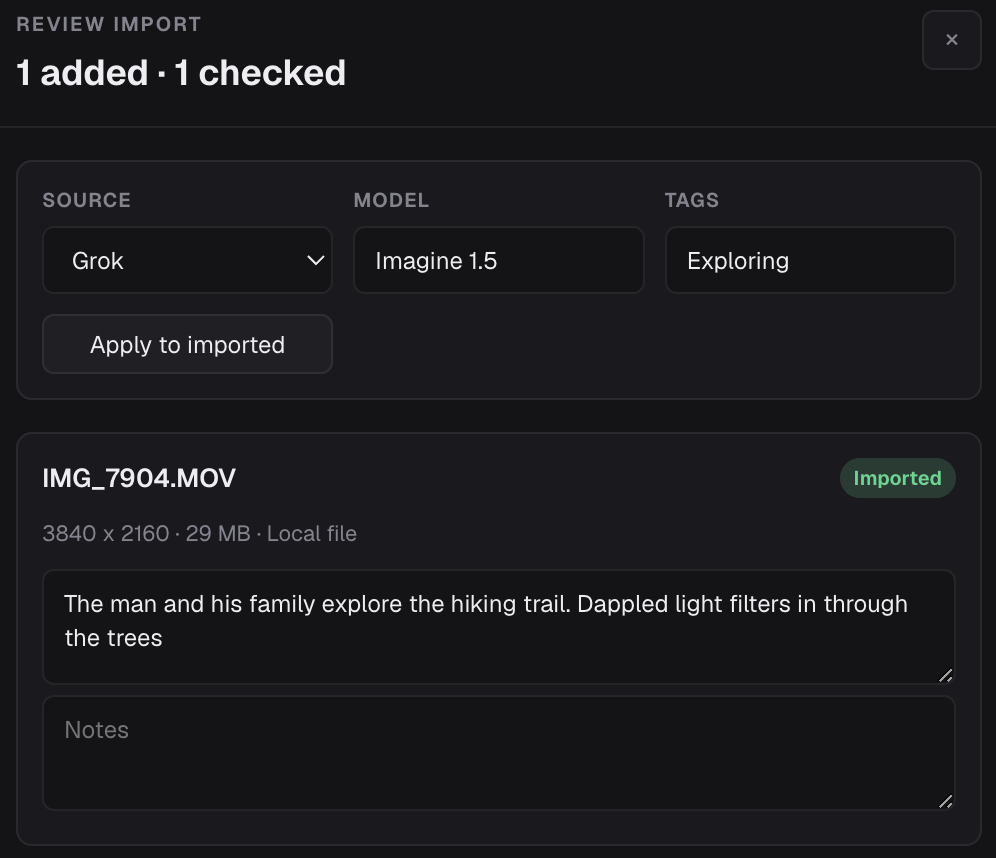
While the batch is fresh, add source, model, prompt notes, tags, and project context. GenCatalog becomes your AI prompt archive, not just another folder.
Rediscover old AI projects
Once older media is imported, you can search across old and new work instead of remembering which drive, export folder, or project name held the file.
Choose a folder. Recover the context. Search again.
Start with one real ComfyUI or AI download folder
Click Import in the toolbar, drag supported files or folders into GenCatalog, or use Settings > Capture & Import > Local media files.
Let GenCatalog read what is embedded
Supported images and videos are copied into your local catalog. ComfyUI metadata is read when present, and exact duplicate hashes keep the same file from coming back as new.
Review the recovered context
Use the detail view and review drawer to confirm source, checkpoint/model, prompt, tags, notes, settings, and LoRAs while you still recognize the batch.
Rediscover it later
Your older local generations become searchable alongside new ComfyUI imports, Grok, Dzine, Higgsfield, Midjourney, Digen, Rogue Studio, and browser captures.
Organize downloaded AI images by what they mean, not where they landed.
Recover the prompt trail
For ComfyUI files with embedded metadata, GenCatalog can recover prompts and workflow details automatically. For everything else, add prompts, notes, tags, and source labels during review.
Rescue the library without multiplying clutter
Recovering a messy folder should not create a new mess inside the catalog. Exact hash checks keep already-imported files from being added again unless you choose Import anyway.
Search across old and new work
Once imported, older downloaded generations can be found by media type, date, tags, source, notes, prompt text, checkpoint/model, and the normal GenCatalog library views.
Safer cleanup after recovery
After important downloaded files are inside your catalog, you can make clearer decisions about what belongs in Downloads, project folders, external drives, or your normal backup.
Bring in the AI media you already have.
GenCatalog is built for local images and videos from ComfyUI, supported platforms, API experiments, exported batches, and unsupported generators where a browser capture is not available yet.
Old generations become findable again.
"Organized my entire collection with ease. Even helped me find old gens that I didn't remember making."
Start with the folder that already bothers you.
Open GenCatalog, recover one real ComfyUI output folder or downloaded media folder, review the batch, and search for a file you used to find by memory. That is the point: old AI media becomes part of a library you can actually use.
Recover years of AI work.
Start with one folder that has been bothering you. Turn ComfyUI outputs and scattered files into a searchable local library you can actually remember.